Google Maps API Key Instruction
In order for the Google Maps widget to work on your new website, an API key will need to be generated from within a Google Cloud Platform account. You will need a valid gmail email address to activate this account and access the Maps portion of the account. 829 is not able to generate this key on your behalf, it must be created by you as a business owner using the Google account and billing info specific to your company. Before starting this process make sure you have a company credit card on hand to add the required Billing info.
Billing Note: Google currently allows 28,500 map loads free per month. This is sufficient for most small - mid size companies. Sites with heavier traffic may exceed this number. If so, Google will automatically bill $7 per 1,000 map loads beyond 28,500/month. Regardless, Google still requires billing info for every key generated. (Please be advised that Google may possibly update policies at any time - see their docs for more details: https://mapsplatform.google.com/pricing/)
Access The Google Maps Platform using a valid gmail address for yourself or your business. If you don't already have a gmail address you will need to do that first. Make sure you keep track of which account and password you used to log in here because that same account will need to be used to manage the key and billing info in the future.
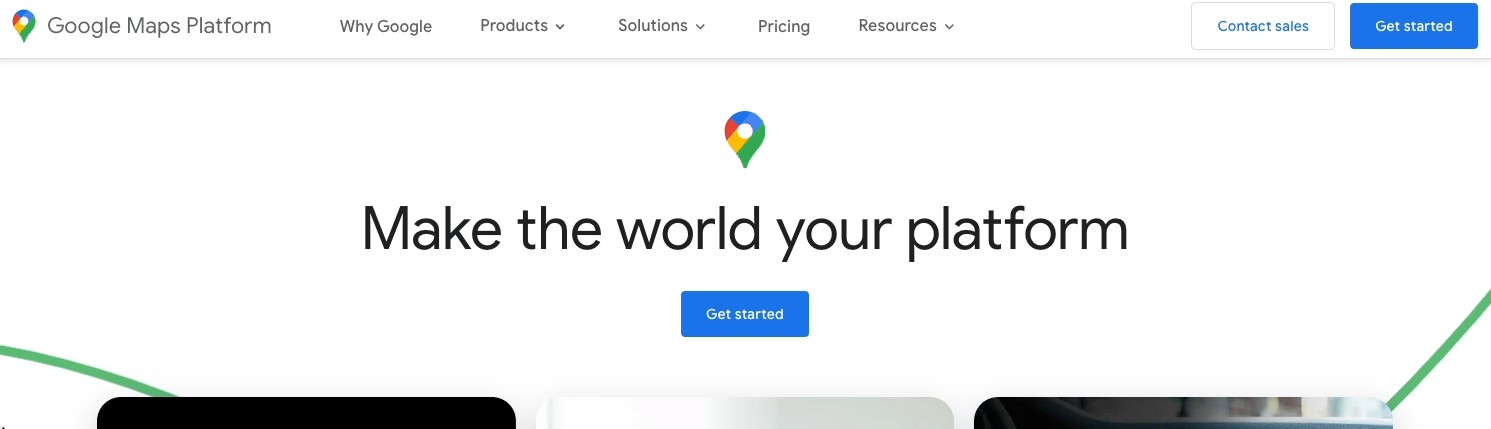
Click Get Started in the top right
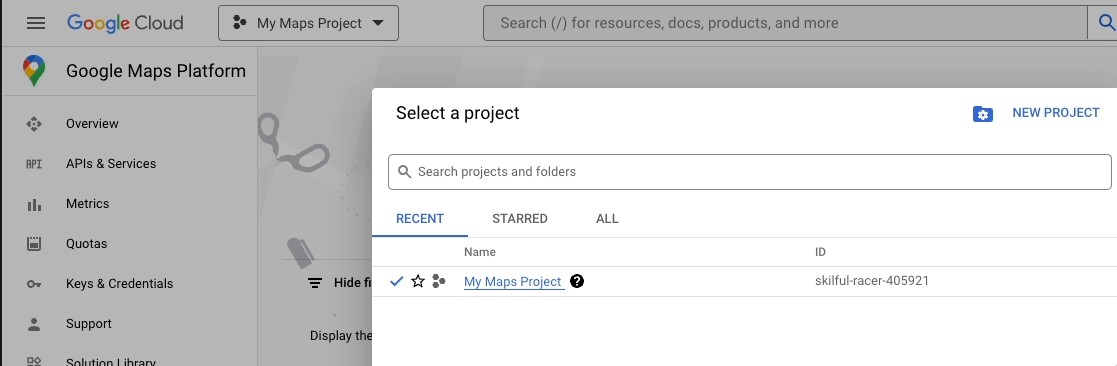
Click Select a Project dropdown and choose 'New Project' option
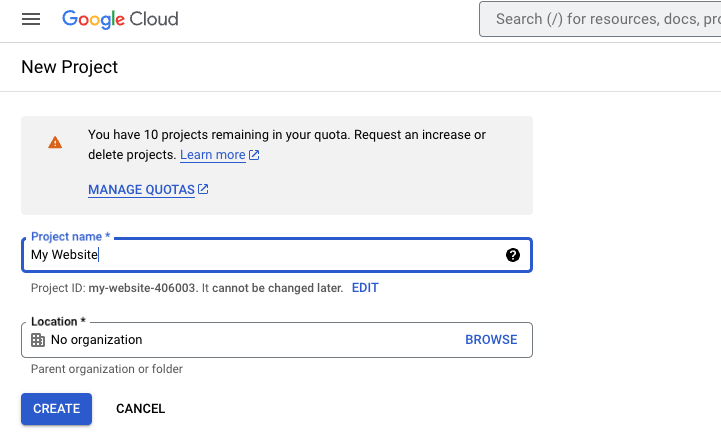
Name your Project (e.g. your company's domain name 'Website Name') and click 'Create'
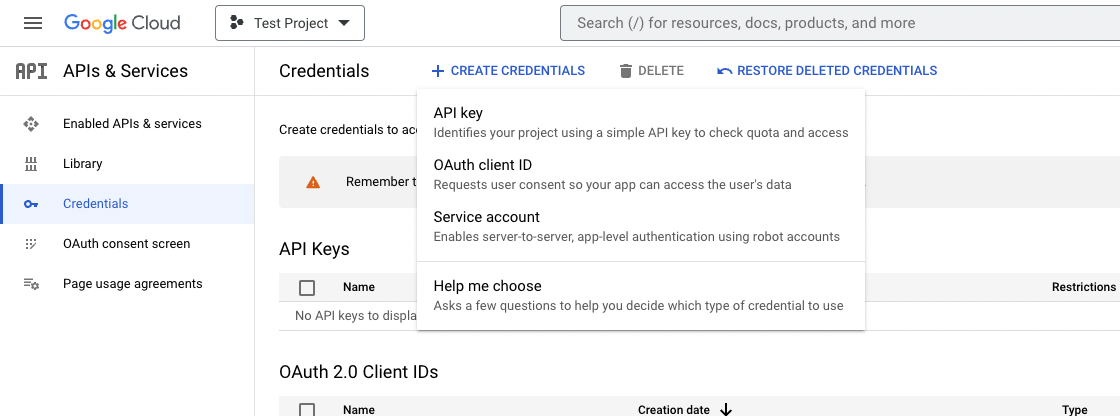
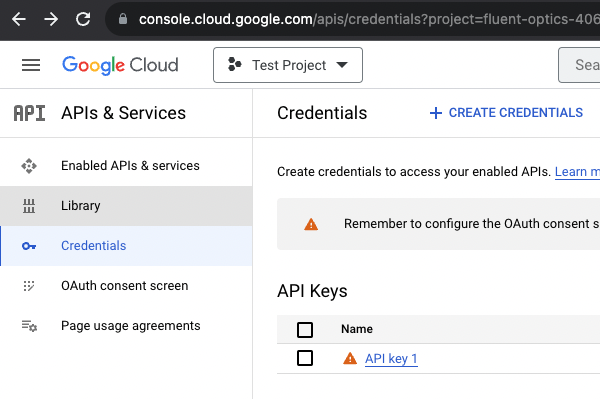
Navigate to APIs & Services > Credentials using the side menu
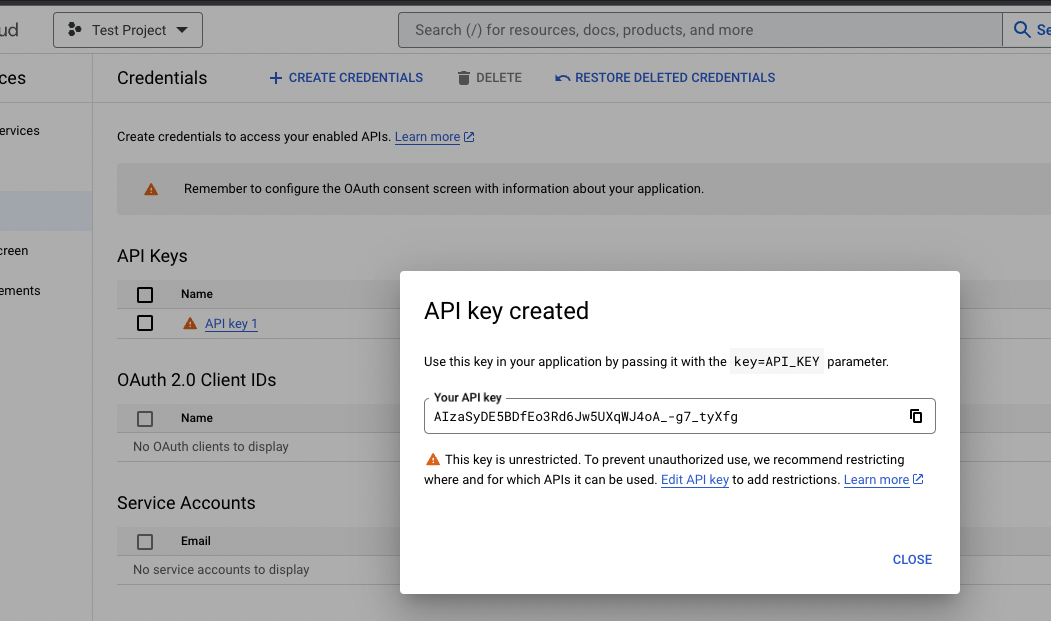
Making sure you have the intended Project chosen in the dropdown in the top left of the screen, click 'Create Credentials'. Choose 'API Key'
Your API Key will display. Immediately copy it and paste it somewhere you can quickly access it
You will have the option to restrict the key. Do not do this yet - we will test the API Key first and provide further instruction. Most likely the restriction can be added once the site launches.
Enabling 'Maps Javascript API'
Click 'Library' in the menu on the left hand side
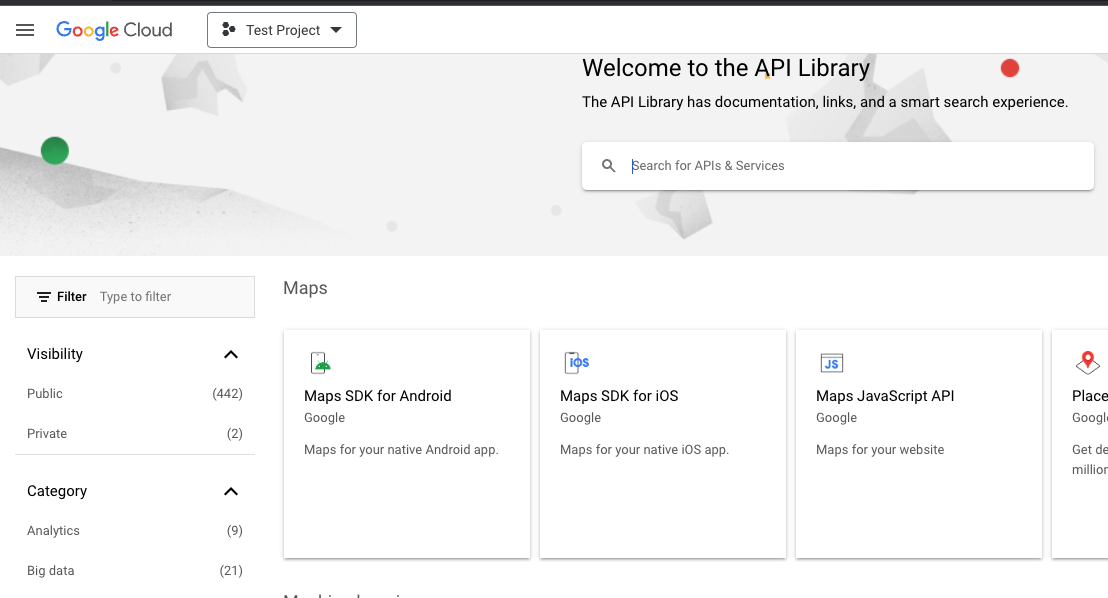
Click 'Maps Javascript API'
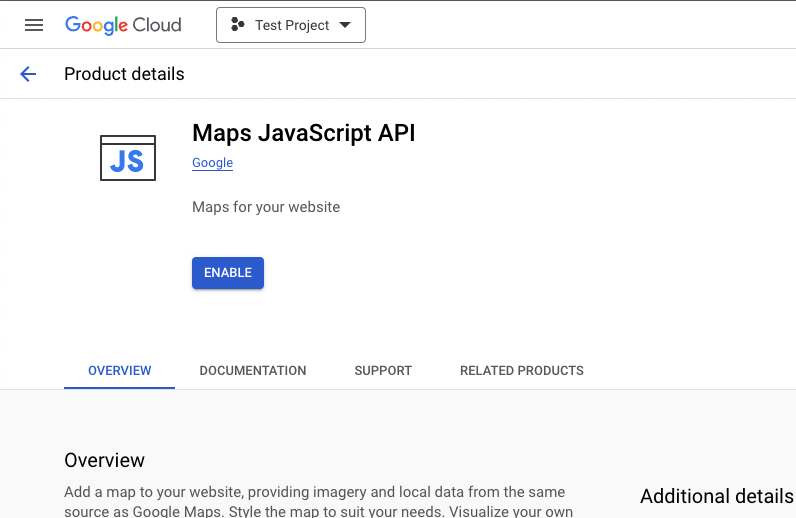
On the 'Maps Javascript API' page, click 'Enable'
Repeat the same 'Enabling' process for 'Google Maps Geocoding API and Places API
Send the API key to your point of contact at 829
NOTE: During the setup process, at some point you will be taken automatically to a screen to verify your account and add Billing info. You must fill out the Billing info. Click Start My Free Trial to complete setup.